
AI Technical Support
(Notice: You will be redirected to the OpenAI ChatGPT portal. To use our AI technical support, you must sign in to ChatGPT).
1. What operating systems and software are supported for opening standards in electronic (.pdc) format?
2. How do standards purchased through the standards portal open the first time? (video tutorial)
3. How do prepaid standards within the STN-online service open the first time?
4. How can I transfer text from a standard in Locklizard Viewer?
5. How are standards ordered through the portal? (video tutorial)
6. Problems opening standards on Mac OS.
7. Problems printing a standard. The standard did not print after starting the print job.
8. Problem opening a standard. I receive the message: Can't connect to server. Check your Internet connection and try again.
9. I am an STN-online service user. How can I find out which standards I have subscribed to?
10. When attempting to open a standard or register a license, I receive the error: Unexpected server response. Request could not be authenticated.
11. When attempting to open a standard or register a license, I receive the error: Chyba při spracování souboru úložiště klíču/Error processing keystore file.
12. When attempting to open a standard or register a license, I receive the error: You don't have access to this document.
13. When attempting to open a standard or register a license, I receive the error: No more licenses are available for you to register.
14. When attempting to open a standard, I receive the error: You can't open this document due to restrictions applied to your account (MS288:126).
15. I was unable to print a standard. During printing, the printer ran out of paper or toner and another printing attempt is blocked.
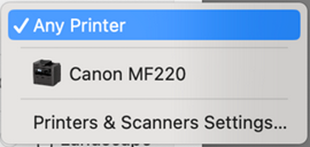
16. I have Mac OS and when attempting to print a standard, the viewer closes after interacting with the print dialog box.
17. How can I print standards from my iPhone / Android device?
18. After clicking Print, the printer does not respond and the document was not printed.
19. How many documents can be displayed simultaneously?
20. Can I open standards in offline mode?
21. After opening a standard, characters are displayed instead of letters with diacritics. What should I do?
22. When attempting to open a standard, I receive the error: Adobe Acrobat Reader cannot open the .pdc file because it is either an unsupported file type or has been damaged (for example, it was sent as an email attachment and was not decoded correctly).
23. How do I import multiple licenses into the Safeguard app on a phone or tablet?
1. What operating systems and software are supported for opening standards in electronic (.pdc) format?
Supported operating systems are:
 Windows 10 and later
To view protected files, you must have Locklizard Safeguard Secure Viewer for Windows installed. You can download it here (ZIP, 49.9 MB).
The software is not supported on Win 8 or earlier.
 Mac OSX 10.8 (64 bit) and later
To view protected files, you must have Locklizard Safeguard Secure Viewer for Mac installed. You can download it here (ZIP, 3.1 MB).
 iOS 9.1 and later
To view protected files, you must have Locklizard Safeguard Viewer for iOS installed.
 Android 5.0 and later
To view protected files, you must have Locklizard Safeguard Viewer for Android installed.
2. How do standards purchased through the standards portal open the first time? (video tutorial)
Video tutorials on opening standards by operating system:
Opening standards on Windows OS
Opening standards on iOS
Opening standards on Android OS
3. How do prepaid standards within the STN-online service open the first time?
To view standards, you must have the Locklizard Safeguard Secure Viewer (ZIP, 49.9 MB) installed.
a) Sign in to the standards portal and in the My Profile section, download the STN-online license to your PC; see the images (do not click on the images; they are provided only for better visualization)

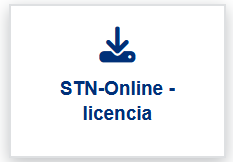
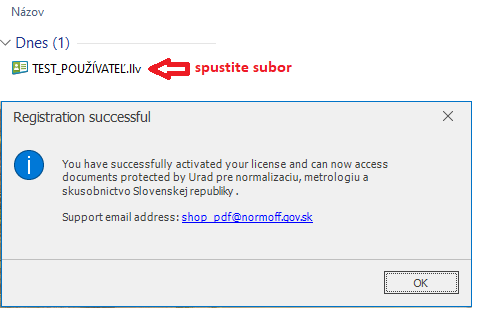
b) Run the downloaded file (.llv). Your license will then be activated.
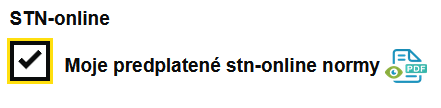
c) In advanced search select the My subscribed STN-online standards checkbox and click Search.
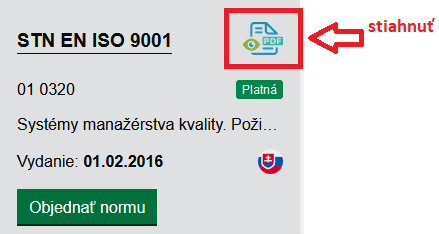
d) After the records are displayed, download the pdc file containing the standard.
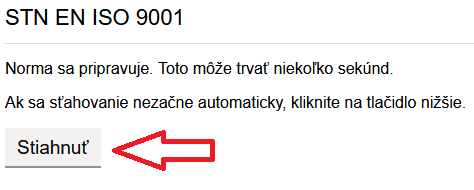
e) Run the downloaded pdc file and the standard will open in Locklizard Viewer.
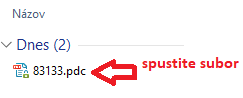
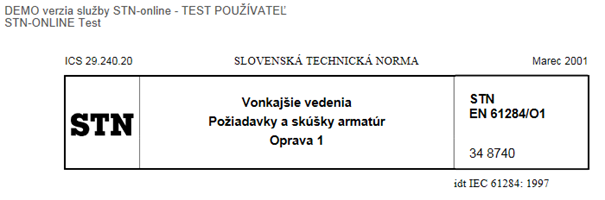
4. How can I transfer text in Locklizard Viewer?
The security architecture of the Locklizard system does not allow standard text copying using the Ctrl + C / Ctrl + V keyboard shortcut. Text can be transferred using the Print Screen function, as also stated in the license terms. The result will be an image of the selected part of the standard, not editable text. This image can then be processed using OCR (optical character recognition), which provides text that can be copied and edited normally. The output format (e.g. MS Word) then behaves in the standard way.
OCR is available in various tools:
- paid applications: Adobe Acrobat Professional, PDF Architect and others
- freely available online OCR generators
- artificial intelligence tools
⚠️ Important notice: The Print Screen function is available only to users with a license that includes text transfer or printing. With read-only access, this function is not permitted.
5. How are standards ordered through the portal? (video tutorial)
Video tutorial on how to register and order standards
6. Problems opening standards on Mac OS.
If you have problems opening standards on Mac OS version 26.0, you need to install an earlier version of the Locklizard viewer, which you can download here: Locklizard_v2583 (ZIP, 3.1 MB). For any other problems opening standards on Mac OS, follow this guide.
7. Problems printing a standard. The standard did not print after starting the print job.
If you experience printing problems, we recommend using a PCL driver for the printer, as it should generally be faster.
For network printers, we recommend not using universal drivers, but the specific driver for the given printer; for example, do not download a universal driver through Windows Update or an HP universal driver, but the driver specific to the printer model, as this may cause problems.
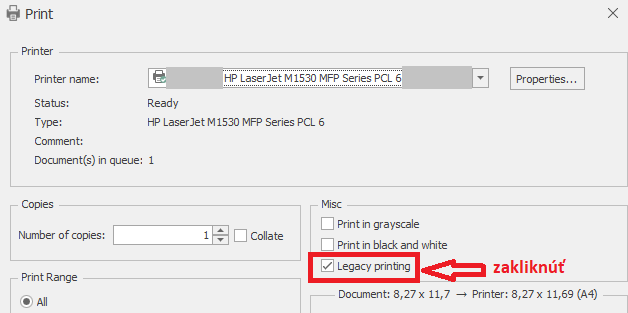
When printing, selecting Legacy printing in the print window may also help.
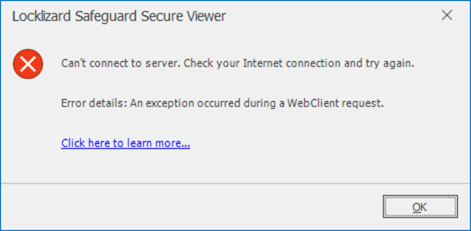
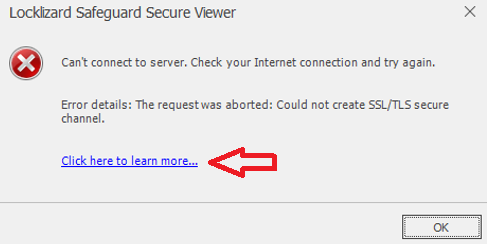
This type of problem is usually on the customer side. Your firewall has probably blocked Internet access for the Locklizard Safeguard Secure Viewer application. Outgoing Internet connections for Locklizard Safeguard Secure Viewer must be allowed on port 8080. You can also allow the Safeguard Administration Server addresses - 3.135.134.151 and 3.14.62.233. However, we recommend clicking the blue Click here to lear more link shown in the message. You will then be redirected to Locklizard technical support directly for the issue, where the solution is provided.
Another possible issue is that you are using older operating systems (Win 8 or earlier), which are not supported. In this case, the only solution is to update the OS to the latest version.
9. I am an STN-online service user. How can I find out which standards I have subscribed to?
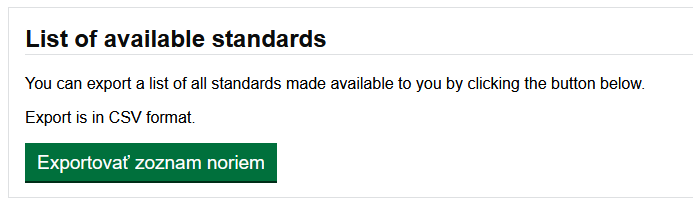
After signing in to the standards portal, in the My Profile - STN-online profile section, you can download the list of standards made available under the STN-online service subscription; see the image (do not click on the images; they are provided only for better visualization).
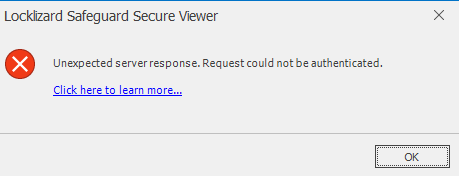
The most common issue is an incorrectly set time on your PC. The time is probably set a few minutes ahead or behind, which causes the connection to the Locklizard server to fail. Set the time accurately and access will work.
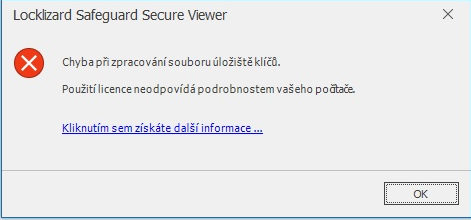
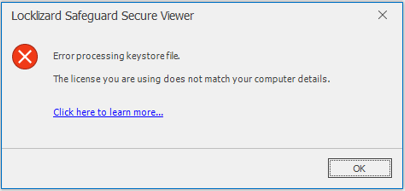
For this type of problem, all license keys must be removed from the Locklizard viewer in the section: Home - Remove Keystore
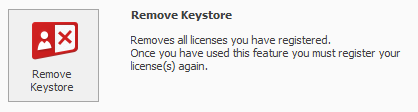
Then register your license again and opening standards will work.
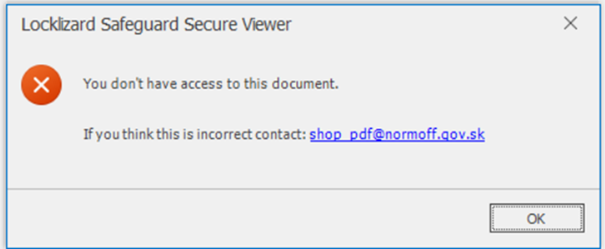
The most common cause of this type of problem is that the user uses a different license to open the standard. For example, for standards ordered through the cart, the user uses a subscription license to open them, or vice versa. When opening a standard, the correct license must be used. This means that if the standards are accessed through an STN-online subscription, the subscription license must be used (the license is located in the profile), and if it is an order, the license is located in the ZIP package with the standard in the HTML file.
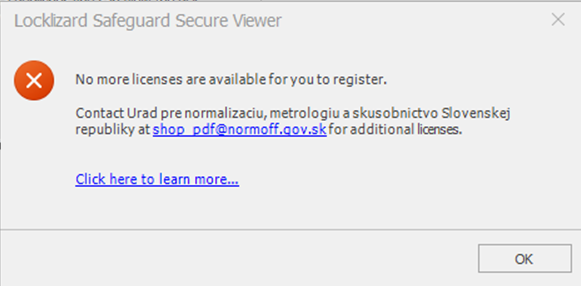
This problem most often occurs when you replace or reinstall your device. It may also occur if you attempt to open standards on more devices than allowed. In this case, you must contact technical support at shop_pdf@normoff.gov.sk. Technical support staff will unblock your devices/licenses, after which you will be able to open standards again. You will be notified by email once the devices have been unblocked.
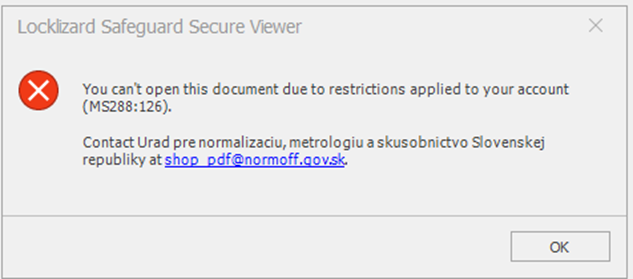
In this case, try activating your license again. After the license is reactivated, the problem should be resolved and opening standards should work. If the problem persists, contact technical support at shop_pdf@normoff.gov.sk. Technical support staff will unblock your devices/licenses, after which you will be able to open standards again. You will be notified by email once the devices have been unblocked.
Contact technical support at shop_pdf@normoff.gov.sk. Technical support staff will unblock printing of the standard. You will be informed by email once printing has been unblocked.
Before opening the Print dialog box, go to Page Setup and in the "Format For" drop-down list, select the specific printer instead of "Any Printer" (which is the default setting unless you have changed it).
17. How can I print standards from my iPhone / Android device?
Printing from iPhone or Android devices is not supported. Printing is possible only from a PC running Windows or Mac.
18. After clicking Print, the printer does not respond and the document does not print.
Due to the way the Locklizard software spools pages to the printer, printing documents uses a large amount of memory. This can overload printers with built-in memory, causing them to print only part of the document or not print at all. In this case, we recommend printing the standard in parts (e.g. 10 pages). Because the number of printouts is limited, contact technical support at shop_pdf@normoff.gov.sk, where technical support staff will configure document printing so that you can print it in multiple parts.
19. How many documents can be displayed simultaneously?
Only 3 instances of Locklizard Safeguard Viewer can be active on one PC. This is a hard-coded security measure and cannot be changed.
20. Can I open standards in offline mode?
No, opening standards is supported only in online mode, meaning the device must be connected to the Internet.
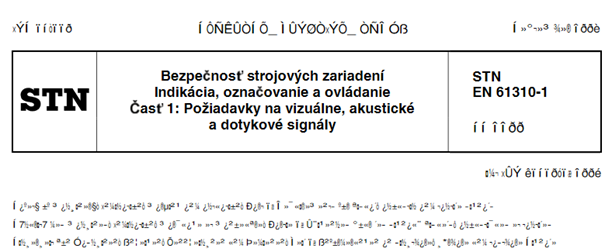
In the Locklizard settings, we recommend turning DirectX Render on or off (depending on your current setting).
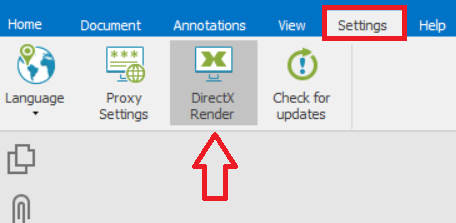
If this does not help, contact technical support at shop_pdf@normoff.gov.sk; the standard will need to be replaced with a new file, which should then display correctly.
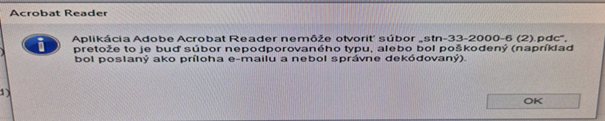
The problem is that you are trying to open the standard in pdc format through Adobe Acrobat, which does not work because to open pdc files you must have Locklizard Safeguard Secure Viewer installed. You can download it here. After installing the Locklizard viewer and activating the license, the standard should automatically open in Locklizard Viewer. If this does not happen and the standard still opens through Adobe Acrobat, you need to manually set pdc files to open through Locklizard. To do this, right-click the pdc file to display the file options, then select "Open with" - choose Locklizard from the menu and select the checkbox "Always use this app to open .pdc files".
23. How do I import multiple licenses into the Safeguard app on a phone or tablet?
Unfortunately, only one license can be active on a phone or tablet at the same time. Importing multiple licenses simultaneously is not supported.
In case of any technical problems with STN and TNI in electronic format and the STN-online service, please contact our technical support at shop_pdf@normoff.gov.sk